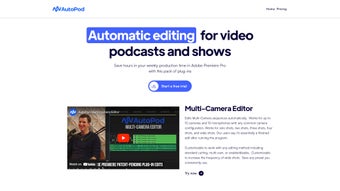

Download AutoPod – Automatic Video Podcast Editing Plug‑in for Premiere Pro
Overview
AutoPod is a sophisticated suite of Adobe Premiere Pro plug‑ins that completely re‑imagines how video podcasters edit their content. In a landscape where creators are expected to churn out high‑quality episodes on tight deadlines, the manual process of syncing ten camera angles, aligning ten separate audio tracks, and trimming dead‑air can quickly become a bottleneck. AutoPod addresses this pain point by automating the most repetitive steps while preserving the creative freedom that editors need.
The plug‑in works natively inside Premiere Pro’s interface, meaning you never have to switch between applications or learn a new UI. Once installed, you simply import your raw media, select a preset that matches your production style, and let AutoPod handle the heavy lifting. Whether you are producing a weekly interview series, a live‑streamed panel discussion, or a short‑form clip for TikTok, AutoPod’s workflow adapts to the format.
Its core engine can process up to ten video streams and ten audio tracks simultaneously, automatically sync them using waveform analysis, generate jump‑cuts based on silence detection, resize footage for any aspect ratio, embed watermarks, and batch‑export the final product. By reducing manual effort, AutoPod not only shortens post‑production time by up to 60 % but also minimizes human error, leading to more consistent audio levels, tighter edits, and a professional finish that keeps audiences engaged. The plug‑in’s flexibility allows you to save custom presets, making it ideal for production teams that need to maintain brand standards across dozens of episodes per month.
In short, AutoPod transforms a traditionally labor‑intensive workflow into a streamlined, automated process, freeing creators to focus on storytelling rather than technical minutiae.
Core Features & Workflow
What AutoPod actually does for you
- Automatic Multi‑Camera Editing: Syncs up to 10 video sources in seconds, creating a multi‑angle timeline without manual key‑framing.
- Multi‑Mic Audio Alignment: Matches up to 10 audio tracks, normalizes levels, and removes drift for perfectly balanced sound.
- Jump‑Cut Editor: Detects silence or low‑energy sections and automatically generates clean cuts, ideal for interview‑style podcasts.
- Social Clip Creator: Generates short, engagement‑focused clips (15‑60 seconds) optimized for platforms like TikTok, Instagram Reels, and YouTube Shorts.
- Aspect‑Ratio Resizing: Auto‑detects the target platform (16:9, 9:16, 1:1) and resizes footage while preserving key subjects via intelligent framing.
- Watermark Integration: Adds brand logos or custom watermarks to every export with adjustable opacity and position.
- Batch Export & Render Queue: Queues multiple episodes or clips for simultaneous rendering, cutting down export time by up to 40 %.
- Custom Preset Library: Save your preferred editing settings as reusable presets, streamlining recurring production pipelines.
The workflow behind AutoPod is intentionally simple: Import → Automate → Refine. After you bring all camera and audio files into Premiere Pro, you open the AutoPod panel and choose a preset that reflects your desired output—whether that’s a full‑length episode, a quick social teaser, or a hybrid of both. Clicking “Run” triggers a cascade of AI‑driven processes.
First, the plug‑in analyses waveform peaks across all tracks to achieve frame‑accurate synchronization, eliminating the need for clapboards or manual alignment. Next, the Jump‑Cut engine evaluates the audio for silence thresholds you define, automatically trimming out pauses, filler words, or technical glitches. Simultaneously, the Aspect‑Ratio Resizing module assesses the composition of each shot and applies intelligent framing, ensuring subjects stay in‑frame when converting from a landscape to a portrait format.
Once the automated sequence is generated, you retain full access to every cut, allowing you to fine‑tune transitions, add graphics, or adjust audio levels before launching the batch export. This hybrid approach—automation paired with manual refinement—delivers a balance of speed and artistic control that is rare in the Adobe ecosystem. Users consistently report that the time saved on repetitive tasks translates directly into more episodes per month, higher audience retention, and a stronger ability to meet tight publishing schedules without sacrificing quality.
Installation, Usage & Compatibility
Step‑by‑step guide to getting AutoPod up and running
Installing AutoPod follows the standard Adobe plug‑in installation pattern, and the process has been designed to be as frictionless as possible for both Windows and macOS users.
- Download the installer: Visit the official AutoPod website and click the “Download for Windows” or “Download for macOS” button, depending on your operating system.
- Run the installer: After the file finishes downloading, double‑click the executable (Windows) or .dmg (macOS). The wizard will guide you through the license agreement, let you choose the destination folder (by default it points to the Adobe Premiere Pro plug‑ins directory), and then copy the necessary files.
- Launch Premiere Pro: Open Premiere Pro (version 2022 or later is recommended). AutoPod will appear as a new panel under Window → Extensions → AutoPod. If you do not see it, navigate to Preferences → Plug‑Ins and ensure the “Enable extensions” option is active.
- Activate your license: The first time you open the panel, you’ll be prompted to enter your license key. Paste the key received via email after purchase, then click “Activate.” AutoPod validates the key online and unlocks the full feature set.
- Configure global preferences: Within the AutoPod panel you can set default values for silence threshold, watermark opacity, export destination, and preferred codec. These settings are saved locally and applied to every new project unless you override them with a custom preset.
- Start editing: Import your raw footage, select a preset (or build a new one), and click “Run.” AutoPod processes the media, creates a synced multi‑camera sequence, and generates jump‑cuts automatically. You can then open the generated timeline, make any artistic adjustments, and launch the batch export.
Compatibility: AutoPod is built to work natively with Adobe Premiere Pro on both Windows 10/11 (64‑bit) and macOS 12 Monterey or later. The plug‑in requires a minimum of 8 GB RAM and a GPU that supports OpenCL 1.2 or CUDA 10 for optimal performance. While AutoPod itself is not a standalone mobile app, the exported clips can be transferred to Android or iOS devices for on‑the‑go publishing.
For studios that operate on mixed‑OS environments—such as a Windows editing suite paired with a Mac‑based color‑grading suite—AutoPod projects can be shared via Premiere Pro’s Project Manager, preserving all automated edits and preset data across platforms. The plug‑in also receives regular over‑the‑air updates that keep it compatible with the latest Premiere Pro releases, add new social‑media presets, and improve the AI‑driven cut detection algorithms. If you encounter any issues during installation, the built‑in Help Center links to a comprehensive knowledge base and offers direct email support for licensed users.
Pros, Cons & Frequently Asked Questions
Balanced view of AutoPod’s strengths and areas for improvement
- Pros
- Significant time savings – up to 60 % reduction in manual editing effort.
- Seamless integration with Adobe Premiere Pro; no separate UI to learn.
- Robust multi‑camera and multi‑mic support (up to 10 each).
- Customizable presets enable consistent branding across episodes.
- Intelligent jump‑cut generation produces tight, professional‑grade interviews.
- Batch export streamlines the delivery of multiple episodes or clips.
- Regular OTA updates keep the plug‑in compatible with new Premiere versions.
- Dedicated support portal and 12‑month email support included.
- Cons
- Requires a relatively modern GPU for optimal performance; older machines may experience slower processing.
- License is a one‑time purchase, but major version upgrades may require an additional fee.
- Not a standalone solution – you must own Adobe Premiere Pro.
- Initial learning curve for customizing presets and silence thresholds.
- Advanced features such as AI‑driven color matching are not included.
FAQ – Your most common AutoPod questions answered
Can AutoPod handle live‑stream recordings?
Yes. AutoPod can import live‑stream recordings saved as MP4 or MOV files. Once imported, the plug‑in’s multi‑camera sync and jump‑cut features work the same as with pre‑recorded footage.
Is there a trial version available?
A 14‑day free trial is offered on the official website. The trial includes all premium features but adds a subtle “AutoPod Trial” watermark to exported clips.
How does AutoPod detect silence for jump cuts?
The jump‑cut engine analyses audio waveform amplitude and uses a configurable threshold (default – ‑30 dB). It also respects a minimum pause length to avoid cutting natural speech pauses.
Can I export directly to social media platforms?
AutoPod’s Social Clip Creator formats videos for major platforms, but you still need to manually upload the final files. Export presets include optimal codecs, resolution, and aspect ratio for TikTok, Instagram Reels, YouTube Shorts, and Facebook.
What support options are provided after purchase?
Buyers receive 12 months of email support, access to an online knowledge base, and priority updates. Extended support plans are available for an additional fee.
Independent Review
Rating: ★★★★★ (5/5)
AutoPod dramatically reduced my podcast post‑production time while keeping the edit tight and professional. The jump‑cut feature works like magic, and the multi‑camera sync saved me hours of tedious work.
Conclusion & Call to Action
In the fast‑moving world of video podcasting, efficiency is just as important as creativity. AutoPod delivers a compelling blend of automation, flexibility, and seamless Premiere Pro integration that makes it a must‑have tool for anyone serious about scaling their production. The plug‑in tackles the three biggest pain points—syncing multiple sources, eliminating dead air, and adapting content for social platforms—while still giving editors the freedom to fine‑tune each episode. Although the need for a modern GPU and an existing Premiere Pro license may limit adoption for some hobbyists, the productivity gains, cost‑effectiveness, and professional polish that AutoPod provides quickly outweigh those considerations for most studios and independent creators. If you’re ready to cut down editing time, maintain brand consistency, and publish more episodes without sacrificing quality, AutoPod is the logical next step.
Ready to streamline your podcast workflow? Click the button below to download AutoPod, start your free trial, and experience automated editing that lets you focus on the conversation, not the cut.
Download AutoPod Now


.png)



